Money
Money answers: what came in, and what is still unsettled.
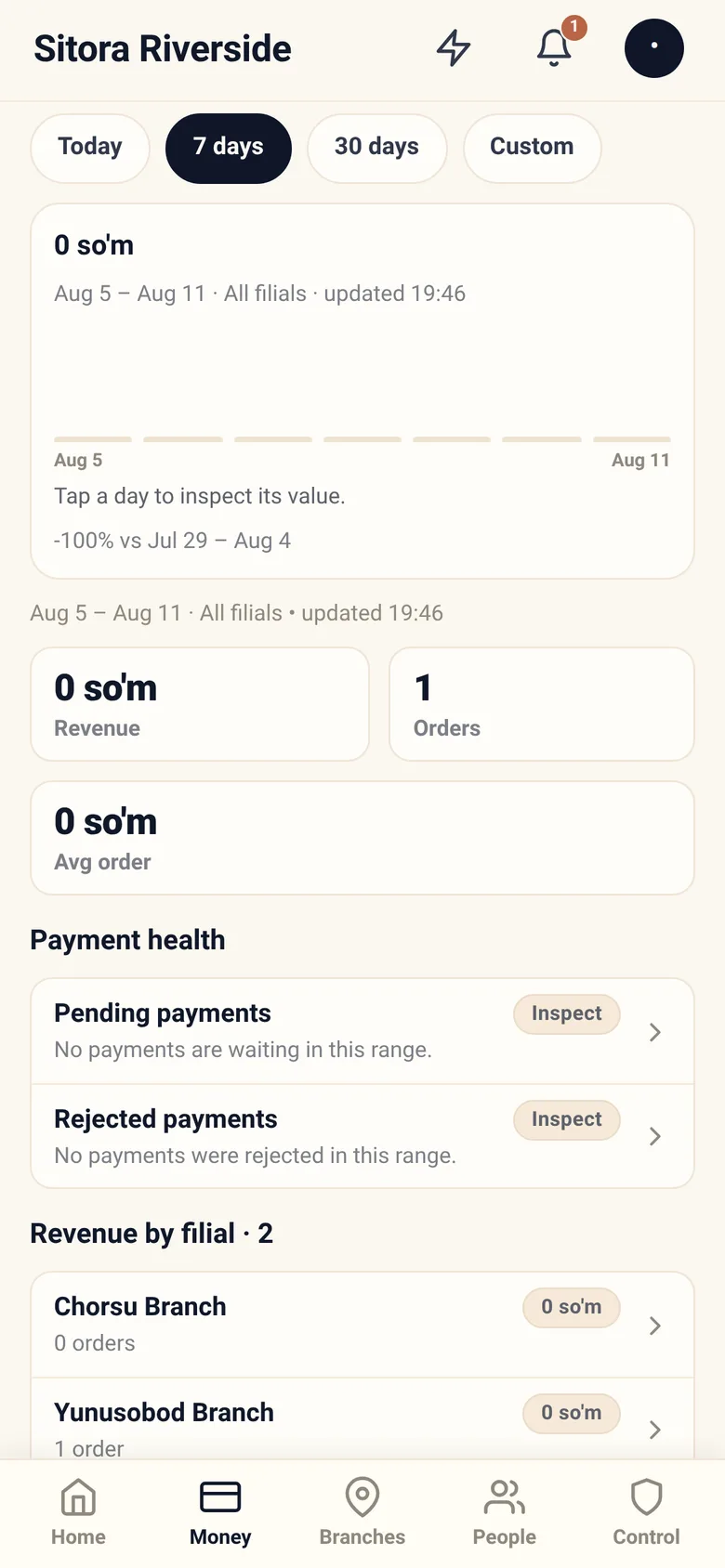
Choosing a range
Section titled “Choosing a range”Four chips: Today, 7 days, 30 days, and Custom — a range you type
with start and end dates (YYYY-MM-DD). Everything on the screen follows the one
you pick.
Start with 7 days. “Today” early in the service day looks alarming and means nothing. 30 days is the one to reach for when you want the shape of a month without typing dates.
“Today” means your restaurant’s today, in the timezone the restaurant is set to — not the timezone of the phone you are holding, and not UTC. An owner checking the numbers after midnight sees the day that has just started, wherever they happen to be.
Revenue
Section titled “Revenue”The top of the screen carries, in order: a revenue chart for the range with a footnote comparing it to the period before, three tiles — Revenue, Orders, Avg order — a Payment methods table, and, further down, revenue by branch.
Two things matter:
Confirmed. This is money a cashier or a payment provider confirmed — not money that was claimed. A guest who says they transferred is not revenue until someone confirmed it. If revenue looks low and your payment queue is long, those are the same fact.
Payment health, and the door to the transactions
Section titled “Payment health, and the door to the transactions”Two rows, not a dashboard: Pending payments and Rejected payments. Each carries its count and amount in the line beneath, turns to an attention tone when it is not zero, and says Inspect on the right.
A rising pending figure is a staffing signal — orders are blocked until a cashier decides.
Transactions
Section titled “Transactions”Inspect is how you get here. Pressing it on either payment-health row opens the transaction list for the range, filtered to that status; chips inside let you move between All, Pending, Confirmed and Rejected without going back. The list is paged, with Next page and Previous at the bottom.
The rows themselves do nothing. Each shows the transaction’s number, its branch, its amount and its status, and there is nothing to press — no per-row Inspect, no detail behind it. What you see in the list is all there is.
It is read-only, and the sheet says why: corrections happen in Sitora Pro as compensating records. An owner cannot reach into a transaction and change it. If something is wrong, a correction is recorded — the original stays.
That constraint is what makes the list worth anything as evidence.
Owner reports
Section titled “Owner reports”Reports answer specific questions — payment methods, daily summaries, and similar. Open one for its detail.
They are not a general query tool, and deliberately so. Each report exists because owners kept asking that question.
Generated analysis
Section titled “Generated analysis”It is not on the Money screen. The app calls it Generated analysis and it lives in Account → Generated analysis, described here because it is the same subject as the rest of this page. See Your account.
Beyond the numbers on screen, Sitora will generate an analysis of your business: a workbook and a document you can keep, send to an accountant, or read on a plane.
You choose a pack — a named set of subjects, either Operations or Money — a period, and a scope. The period is one of four: last 7 days, last 30 days, last month, or last 90 days. There is no free-typed date range here; the custom range on the Money screen above governs Money’s own figures, not this. Sitora builds the pack in the background: It appears under Files when it is ready — you do not have to wait here. It is not instant and it is not meant to be; a long workbook is real work.
Nothing tells you a pack you asked for has finished. Come back to Files and look. Only a scheduled monthly pack raises an alert on completion — and a pack that fails raises one either way, so silence means it is still building or already waiting, never that it failed.
The panel has two halves. What is inside lists every section with whether it can be produced for what you picked. Files lists every pack this restaurant has ever generated, ready or not, with the workbook and the document to download.
What it can cover
Section titled “What it can cover”Analysis is organised into sections, each one a subject:
| Group | Sections |
|---|---|
| Operations | Trade and demand · Menu mix · Service and incidents · The dining room · Loss and leakage · Delivery economics · Courier reliability · Payments and cash control · Branch comparison · Staff activity |
| Money | Cost and margin · Labour · The bottom line |
Trade and demand, Menu mix, Service and incidents, and Payments and cash control are free on every plan — including a lapsed one. Your own operating record is always yours to read. The rest, along with consolidated multi-branch analysis, ranges longer than a month, and scheduled monthly delivery, come with the plan.
A section that cannot say anything says so
Section titled “A section that cannot say anything says so”Before you generate anything, each section tells you whether it can actually answer — and if not, why, in words. There are three different “no”s and they are not interchangeable:
- No data. Nothing has been recorded that this section reads. Cost and margin needs recipes; labour needs shifts. Nothing is wrong; the answer does not exist yet.
- Not on your plan. It exists and is behind the subscription. Asking for a consolidated whole-restaurant pack, or a range longer than the free window, answers this way too — those are sold, not missing.
- Not at this scope. The section cannot answer what you asked for, not on this plan and not ever. Branch comparison asked for one branch is the plain case: there is nothing to compare. So is a section that names people, in a run you did not opt in to personal data.
A single-branch restaurant is never gated on scope. There is nothing to consolidate, so there is nothing being sold, and it is not charged for the absence.
An empty branch is never sent to a payment screen, and a plan limit is never disguised as missing data.
People are not in it by default
Section titled “People are not in it by default”Analysis names branches and roles, not people. Two sections are about people — Staff activity, Courier reliability — and are simply left out unless you deliberately ask.
Even inside sections that stay, the per-person tables come out: labour cost is a money figure whose detail is a list of names, so the figure stays and the table is replaced by a note saying it was removed. It is not anonymised, because a staff ranking with the names stripped still ranks the same people in the same order.
Asking for a version that does name people is a per-report choice, and the record of who asked outlives the file.
Reports expire; the record does not
Section titled “Reports expire; the record does not”A generated file is kept for 30 days on request, or 13 months for scheduled monthly packs. After that the file is deleted and the record of the run stays — what was asked for, over what range, by whom, and how it turned out. An expired report shows as a row you can regenerate, never as a broken link.
The retention window is printed on the report’s own cover, so a file that has travelled by email still says how long the original was kept.
Fair use
Section titled “Fair use”Six reports an hour, thirty a day, two building at once. These are capacity limits rather than a paywall, and the app says which one you have hit.
Declaring your trading hours
Section titled “Declaring your trading hours”This too is in the Account screen, as Trading hours, not on Money.
Some figures need to know how long a branch was actually open — occupancy, and revenue per available seat-hour. If you have not told Sitora your week, it infers your hours from when sessions opened and closed, and labels those figures as estimates.
Declaring the week moves them from estimated to derived. It is worth ten minutes per branch.
Trading hours are versioned rather than edited: a change starts a new record from a date, and older analysis keeps being computed against the hours that were actually in force.
Day-to-day recipes
Section titled “Day-to-day recipes”Revenue is lower than I expect. Check the range, then check payment health. Unconfirmed payments are the most common cause, and they are a queue somebody has to work, not a loss.
One branch shows nothing. Either it took nothing in the range, or it is not taking payments through Sitora. Open the branch and check its payments configuration.
I need last month’s numbers. 30 days covers a rolling month; use Custom with both dates when you need a calendar month exactly.
Something in the transaction list looks wrong. Note its number — you cannot open the row — and take it to the branch. The correction happens in Sitora Pro, where the cashier records a compensating entry.
I want to compare two branches. Use revenue by branch over the same range. Comparing across different ranges is the easiest way to reach a wrong conclusion.
What you cannot do here
Section titled “What you cannot do here”- Edit a transaction. Read-only, permanently.
- Confirm a payment. That is a cashier’s decision in Sitora Pro.
- Issue a refund. Refunds happen with the branch and, where a provider was involved, through that provider.