Storekeeper
The inventory workspace holds one branch’s stock: how much there is, what is running out, what changed and why, and what customers are allowed to order right now.
The tabs
Section titled “The tabs”| Tab | What it holds |
|---|---|
| Stock | Every item and its current level |
| Alerts | What needs attention, by severity |
| Adjust | Recording a change to stock |
| History | Every movement, with its reason |
| Availability | What customers can order |
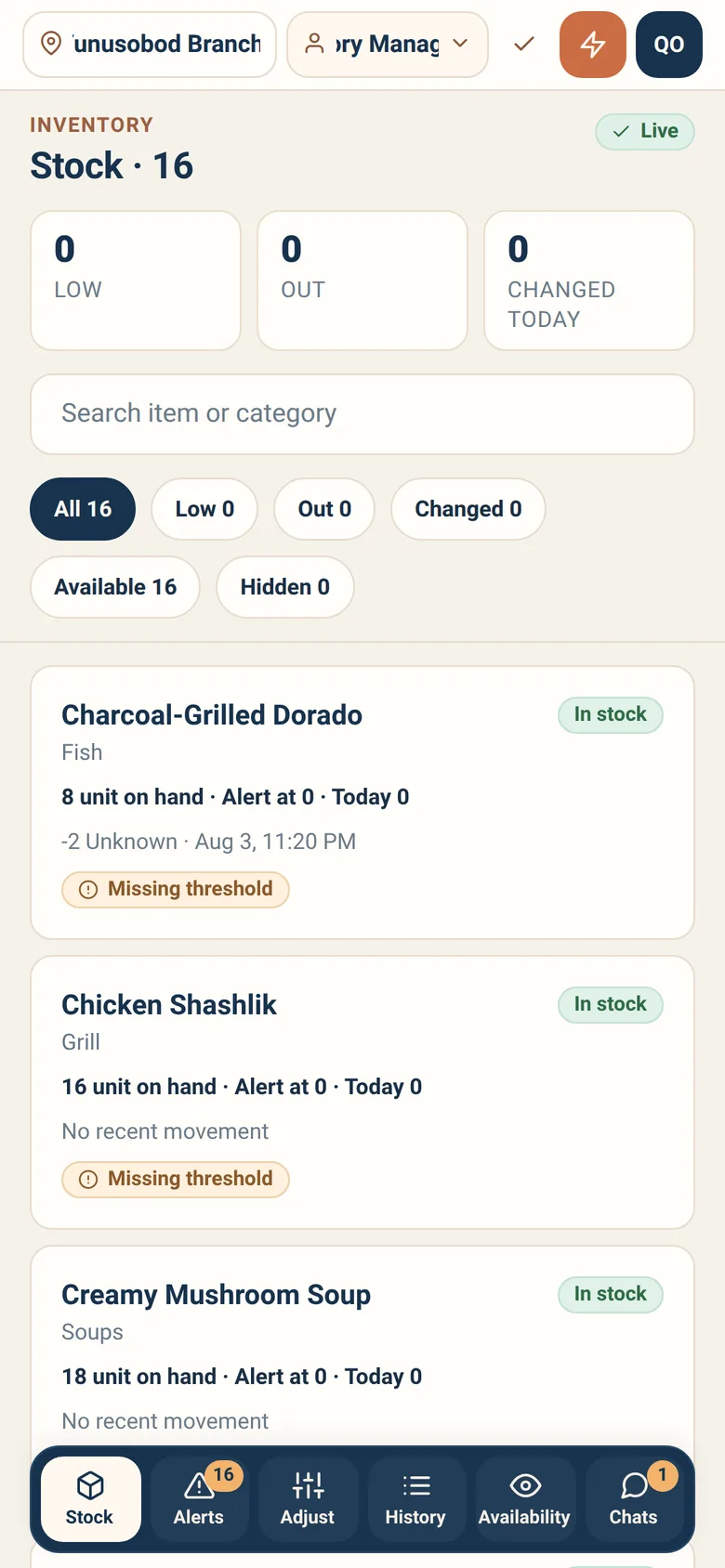
The list of items with their levels. Counters across the top show how many are Low, how many are Out, and how many changed today.
Search by item or category. Tapping an item opens its detail: current level, threshold, recent movement, and the actions available on it.
Alerts
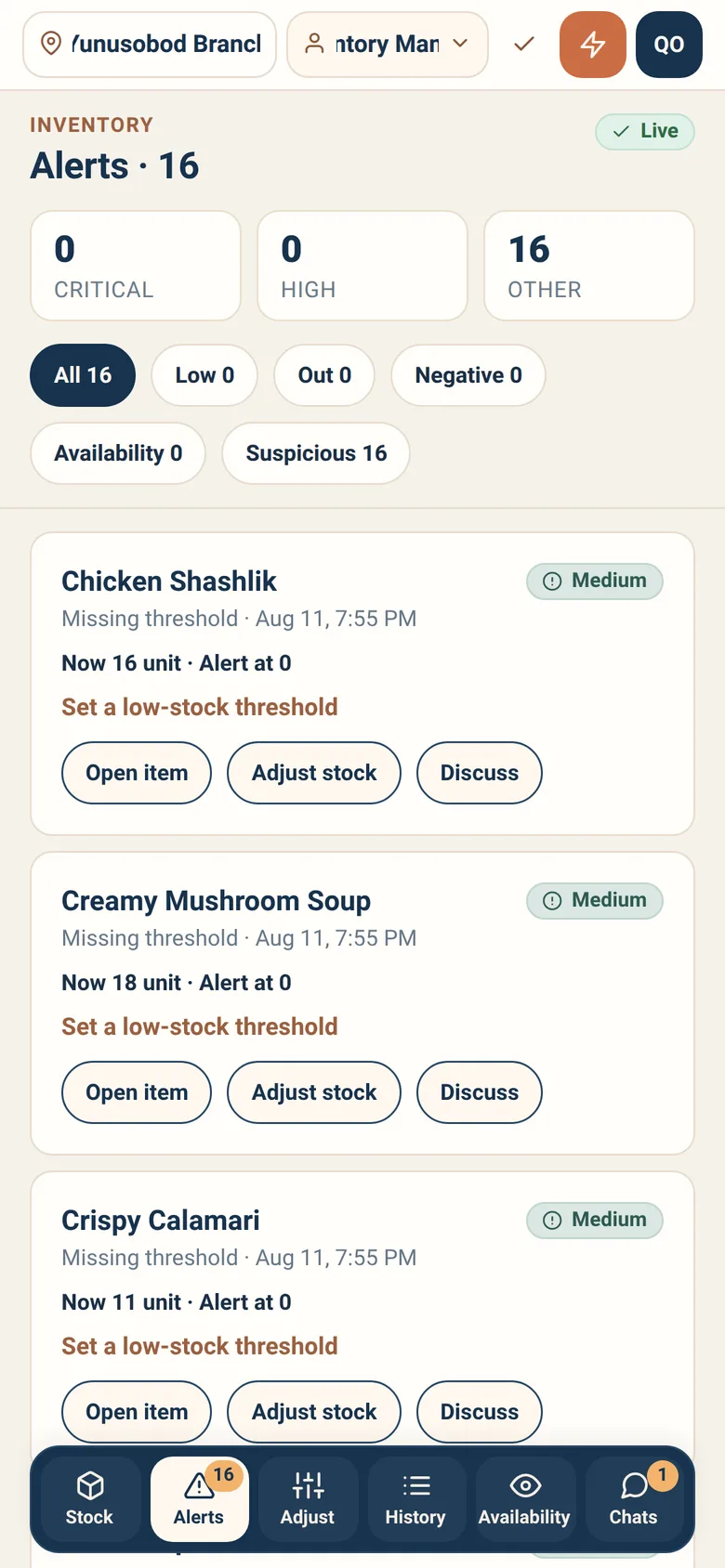
Section titled “Alerts”What needs attention, grouped Critical, High and Other.
Critical means something is out or about to be, and customers can still order it. That combination is what turns into a guest being told mid-meal that their dish is not coming — so this list is the one to clear first.
Adjust — recording a change
Section titled “Adjust — recording a change”Adjustments are how stock changes outside of sales. Every adjustment carries a reason, and the reason is part of the permanent record:
| Reason | Use it for |
|---|---|
| Restock | A delivery arrived |
| Count correction | A physical count disagreed with the system |
| Waste | Thrown away |
| Spoilage | Went off |
| Staff use | Consumed by the team |
| Return to stock | Something came back |
| Admin correction | A correction made by branch administration |
Adjustments are online only. Recording a change against a stale picture is how two people each correct the same discrepancy and take it out twice.
History
Section titled “History”Every movement over Today, 7 days or 30 days, filterable by type — Sale, Restock, Adjustment — and by reason. Sales link to the order that caused them.
This is where you answer questions after the fact. It is a record: you can read and filter it, not change it.
Availability — what customers can order
Section titled “Availability — what customers can order”The Availability tab controls what appears as orderable in the guest app for this branch.
Switching an item off hides it from new orders immediately. It stays on the menu marked Unavailable, so guests can see it exists and staff can see it was a decision rather than a mistake.
This is the fastest lever you have during service. When the kitchen reports that something has run out, switching it off here stops the next ten guests ordering it.
Availability changes are online only, for the same reason adjustments are.
The ingredient shelf
Section titled “The ingredient shelf”Your workspace holds the menu-item ledger — the dishes and drinks a guest can order. The ingredients the kitchen actually cooks with are a second ledger, and you reach it from a row on your own Stock screen: Ingredient shelf — “Count, write off and transfer what the kitchen cooks with.”
The door only appears if your access at this branch actually includes it. A door that led to a refusal would be worse than no door, so where you do not hold it, there is nothing to press.
Behind it are four verbs, on any ingredient:
| Verb | What it does |
|---|---|
| Count | Record what is physically on the shelf |
| Record loss | Record stock that left without being sold |
| Set levels | The reorder point, and how much to order up to |
| Move to a branch | Send stock to another branch of this restaurant |
A loss needs a note, and the app will not take it without one. The reason is stated plainly: “a loss with no note cannot be told from a miscount.”
Moving stock never makes money. The transfer sheet says so: stock leaves this branch and arrives at another worth exactly what it is worth here. You pick the destination from every other active branch of the restaurant, including ones holding none of the ingredient — the whole list, with no load more. A one-branch restaurant is told there is nowhere to send it.
You will see no prices here. Ingredient cost is a separate permission that a storekeeper is deliberately not given, so the transfer sheet shows quantities only. Buying is the supply manager’s job.
What you cannot reach is the rest of the supply workspace. Orders, receiving, suppliers and invoices are not yours — this one door is.
Thresholds
Section titled “Thresholds”An item’s threshold is the level at which it starts warning you. Set it from the item’s detail screen.
Set them where they are useful: high enough that a warning gives you time to reorder, low enough that the alerts list is not permanently full. An alerts list that is always red gets ignored, which is worse than having no alerts at all.
Day-to-day recipes
Section titled “Day-to-day recipes”Kitchen says we have run out of something. Switch it off under Availability first — that stops new orders in seconds. Then record the adjustment so the numbers are right.
A delivery arrived. Adjust with reason Restock. Do it when it arrives, not at the end of the day: everything in between is being sold against a number you know is wrong.
The count does not match the system. Adjust with Count correction. Do not adjust with Waste to make the numbers line up — the reason is the whole value of the record.
Something was thrown away. Waste or Spoilage, honestly. These are the numbers an owner uses to find a real problem.
The alerts list is always full. Your thresholds are too high. Tune them until the list means something.
I am offline. You can look, not change. Reconnect before adjusting anything.
What a storekeeper cannot do
Section titled “What a storekeeper cannot do”- Change prices. That is branch admin or owner.
- Edit history. Corrections are new entries.
- Work across branches. Stock is per branch; switch branch.