Waiter
The waiter workspace is the floor: what has been ordered, which tables are in what state, and what still needs finishing after guests have gone.
The tabs
Section titled “The tabs”| Tab | What it holds |
|---|---|
| Orders | Every live order in the branch |
| Spots | The floor map: every table, room, cabin and tapchan |
| Released | Sessions where the guest has left but something is unresolved |
Plus Chats, which every Pro workspace carries.
On a branch that does delivery you get four more, folded into the floor workspace rather than a separate one: Live, Needs a decision, Rate deliveries and Couriers. They appear only where the branch actually delivers, so two waiters at two branches can see a different number of tabs and both be right. See Deliveries for what they hold.
Orders
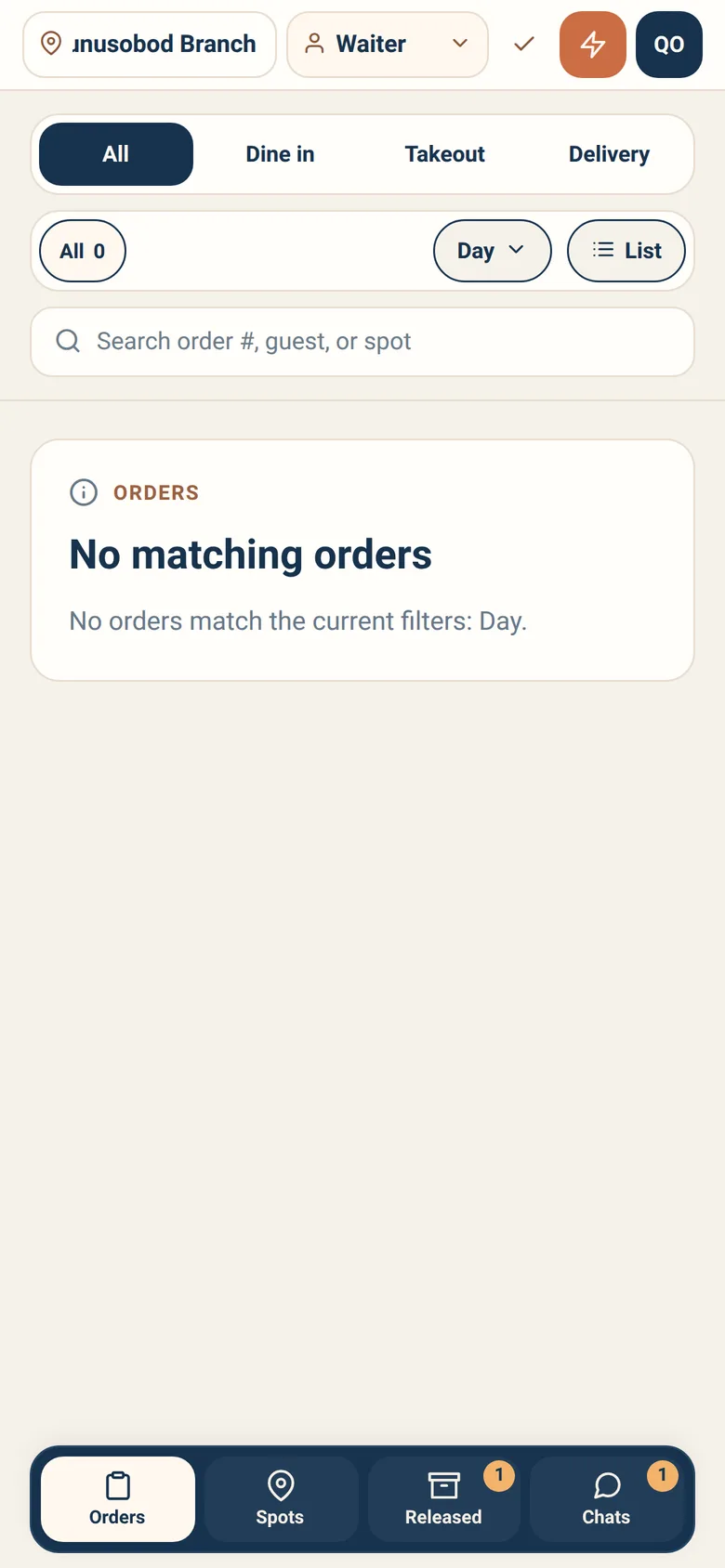
Section titled “Orders”The board shows live floor work: order number, guest, spot, and where the order has got to.
Search covers order numbers, guest names and spots — type any of them.
Order type is the first row: All, Dine in, Takeout, Delivery.
The status rail below it is built from what is on the board right now. It is not a fixed list of filters: the app counts the orders in front of you and offers one chip per status it actually finds, each carrying its count, in a fixed order — All, then Released if any released-session orders are there, then Ready, Pending payment, Received, Preparing, Served, Pickup ready as they occur. A quiet board therefore offers fewer chips than a busy one, and a status nobody is in does not appear at all.
Period narrows how far back the board reaches: Within 3h, Within 6h, Within 12h, Day, 3 days, Week, Month.
List or Cards switches how densely the board is drawn. List fits more on screen; cards are easier to read across a room.
There is no urgency sort on this board — that control belongs to Spots.
Confirming a guest is at their table
Section titled “Confirming a guest is at their table”When a guest orders from their phone, they choose their own table. Someone has to confirm they are really there before the order is treated as a table order.
Orders waiting for this show as Pending confirmation. Open the order and confirm — or correct it if they are somewhere else.
It does not hold the kitchen. Confirming a spot is not a gate on preparation: the only thing standing between an order and the kitchen is payment, and only where the branch charges before it cooks. An unconfirmed order can be cooked and be ready while nobody has yet agreed which table it belongs to.
What waiting really costs is the table’s record. No dining session opens until someone confirms, so the order belongs to no visit, joins no tab, and cannot be closed with the table — and the guest is left looking at “Waiting for the table to be confirmed.” Do it promptly for those reasons, not to unblock the cooks.
Serving
Section titled “Serving”Open an order to see its items and mark what you have taken out. Partly-served orders are tracked as partial, so a table that got three of four dishes does not read as finished.
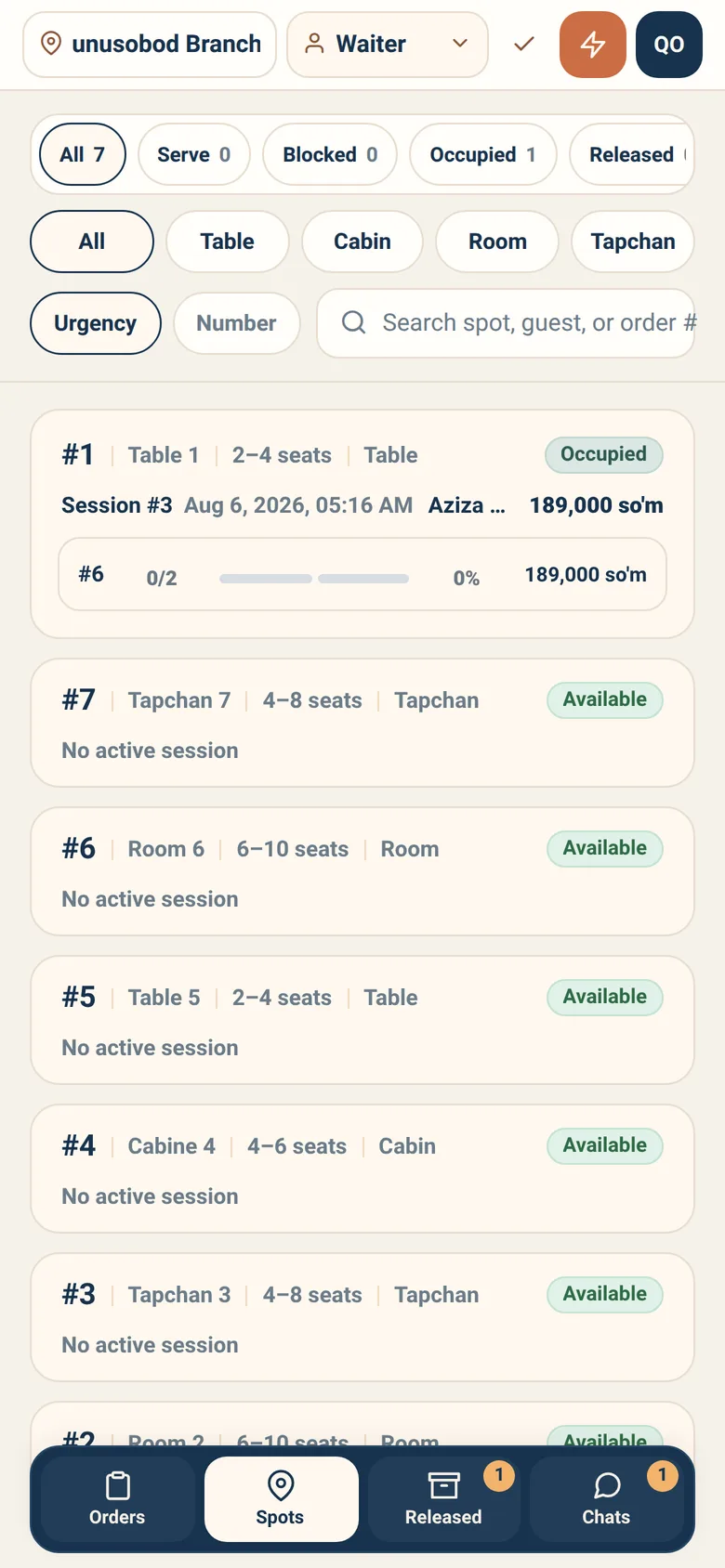
The floor map, showing every spot and its state:
| State | Meaning |
|---|---|
| Available | Free for a new guest |
| Occupied | A session is running |
| Cleaning | Being turned around |
| Maintenance | Out of service |
Facets narrow the view: All, Serve for spots with something to take out, Blocked for spots that cannot be used, Occupied, Released, Available — and a second row filtering by spot type.
Sort lives here, and only here: Urgency puts the most pressing spot first, Number puts them in table order. When you have four things at once, urgency is the fastest way to decide what to do next.
Tapping a spot opens its session — status, guest, when it opened, and what has been served.
The session actions
Section titled “The session actions”Four, plus a control for the spot’s own state.
Guest departed. Record that the guest has left. This does not close anything — it starts the follow-up clock so unfinished work stays visible. The sheet makes you pick a reason first, from five chips: left before food was ready, left after a partial serve, left while the kitchen was preparing, left with unresolved items, not sure. It will not send without one.
Request closure. Finish the visit — that is the button’s real name, and it is a request because the server re-checks the blockers against live state before it agrees. Hold to confirm.
Free spot. Release it to cleaning so it can be reused. Press and hold — freeing a spot that is still in use is a real problem on a busy night.
Add note leaves context for whoever picks the session up next, in your own words: it is a free-text box, not a choice of reasons. On a shift change this is the difference between someone understanding the situation and someone guessing.
Alongside them sits the spot status control, for putting the spot into cleaning or maintenance and back.
Where the branch runs a tab
Section titled “Where the branch runs a tab”Some branches take payment with each order; others let a table run a tab and settle once, on the way out. If yours runs tabs, dine-in orders start being prepared while still unpaid, and the session carries a running outstanding total across everything ordered at that table.
Two things follow:
A session cannot close while its tab is outstanding. It is a blocker like any other, and the refusal names it: “This table still has an open tab.” Because the tab is the last of the six checked, being told about it means nothing else is in the way — and the way past it is settlement, not closure.
The outstanding total is drawn wherever there is a tab. The live spot card carries an On tab figure beside the session total, the session panel you open from Spots carries it beside Total, and a released session’s card carries it beside the spot, the order count and the total. So you can read what a table owes while the guests are still sitting at it — the only moment the number can change what anybody does. A branch that does not run tabs sees none of this.
A tab has a ceiling. Your branch sets how much one table may run up, and when an order would cross it that order is refused: “This table has reached its tab limit. Take payment for what is open before adding to it.” The refusal names both numbers — what is open on the table, and the ceiling — so you know how much to collect before the next round can go on. Nothing already on the tab is affected, and it is not a mistake anybody made. Take payment for what is open, and the table can carry on.
One order can be over the ceiling on its own. At a table with nothing open yet, an order whose own total crosses the limit is refused too — and there the first sentence would be nonsense, because there is no open money to collect and nothing to add to. So that refusal says the only thing that is true of it: “This order is over the limit for one table on its own. Nothing is open to pay off yet, so ordering less is the only way under it.” The figure it names is that order’s own total, not a bill anybody owes.
If the restaurant decides not to collect a tab at all, that is a write-off, and it is a different permission and a different act from closing the session. Clearing a table and forgiving a bill are not the same thing, and a written-off tab stays visibly unpaid rather than quietly becoming takings.
It is not a button in this workspace. The write-off sits beside the settle control on the cashier’s Tables lane, under Take payment — see Cashier. A waiter who needs a tab written off asks a cashier who holds the permission.
Released
Section titled “Released”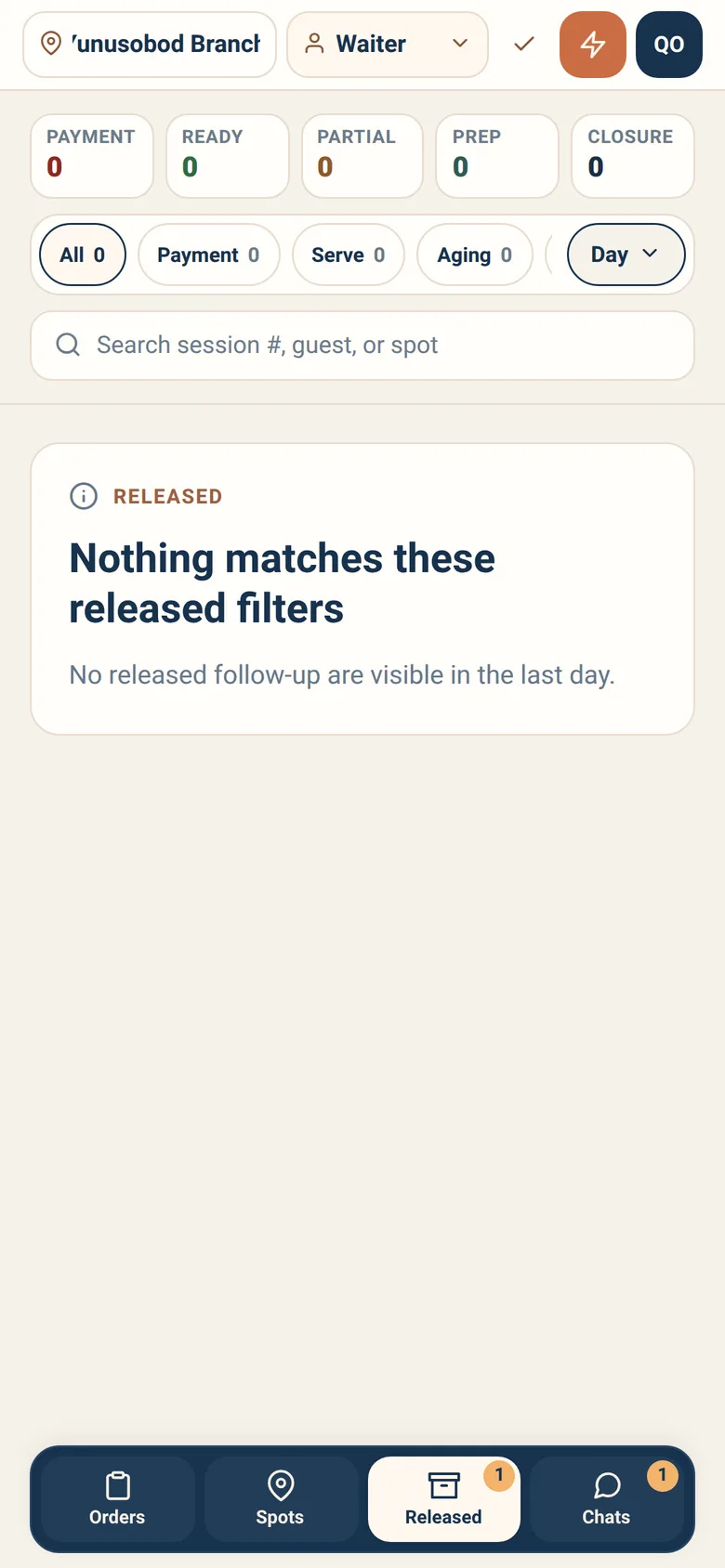
Released is the queue that stops things being forgotten: sessions where the guest has gone but something is unfinished.
Each entry tells you why it is there:
- Guests left the spot, but cashier confirmation is still blocking closure.
- Part of the released session is only partially served and still needs waiter follow-up.
- Ready items still need a final waiter handoff even though the spot is already free.
- Kitchen work is still in progress even though the guest already left the spot.
- No serve or payment blocker is left. The session only needs explicit closure.
Filters narrow the queue by what is holding it: All, Payment, Serve, Aging, Closure — five chips, each with its count. These are the filters the Orders board does not have.
Sessions stay here until their follow-up is resolved. A Period control — Within 3h, Within 6h, Within 12h, Day, 3 days, Week, Month — lets you look back as far as you need.
Clear this queue before you go home. It is the shortest list in the app and the one that causes the most trouble when it is ignored.
Day-to-day recipes
Section titled “Day-to-day recipes”A guest ordered but is at a different table. Open the order and correct the spot when confirming. Do not just serve it to the right table and leave the record wrong — the next person will not know.
Food is ready and the guest has gone. The session moves to Released with ready items need a final handoff. Box it, hand it over if they come back, or resolve it with a manager. Then close.
A table looks occupied but nobody is there. Open the session. If they have gone, record the departure and add a note. Free the spot once nothing is outstanding.
The board is empty and I know there are orders. Check the branch name at the top, then the status rail: it only offers chips for statuses that are actually on the board, so a chip you pressed earlier can leave you filtered onto nothing. Press All. If the connection has dropped, the board replaces the list with You’re offline rather than showing you a stale one, so an empty board is genuinely empty. Refresh.
Someone else moved the order while I had it open. You will be told. Refresh and look again: they may have already done what you were about to do.
A guest wants to add more food. No Sitora app can put it on their visit yet. From the moment a table’s first dine-in order exists, that table stops being offered — it is greyed out in the guest’s spot list, and an order naming it anyway is refused with “This table already has an open tab.” The Counter meets the same refusal, because the Counter is the guest’s own ordering screen. So take the second round the way a restaurant took one before any of this existed, and settle it with the guest.
The session itself is built to hold several orders, and the outstanding total would cover all of them. Sending the second one is the part no Sitora app does yet.
A guest wants to pay. Payment decisions belong to the cashier. Point them at the till or get the cashier — a waiter cannot confirm a payment.
What a waiter cannot do
Section titled “What a waiter cannot do”Deliberately, and it saves arguments:
- Confirm a payment. Only a cashier decides that.
- Change a submitted order’s items. Submitted orders are fixed.
- Close a session with blockers outstanding. Resolve them first — the refusal tells you which one is in the way.
- Work in another branch. Switch branch to work there.