Your account
Your Sitora account is one account across all four apps. This page explains how to keep it safe and what the apps mean when they talk about access.
Keep at least two ways in
Section titled “Keep at least two ways in”Open Sign-in methods from your profile. It lists every way your account can be signed into, when each was last used, and which one you are using right now.
The single most useful thing you can do here is add a second method. Most lockouts have the same cause: someone signed up with one method, then lost it — changed phone number, lost the Google account, deleted the messaging app. With two methods on file, losing one is an inconvenience instead of a lockout.
The app will occasionally prompt you about this after you sign in. It is not nagging for its own sake; it asks when your account genuinely has only one way in — it says Only one way in when that is where you stand, and Recovery covered when it is not.
You cannot remove your last method, and a method you may not remove simply has no Remove beside it — it is not greyed out, and nothing to press means nothing to wonder about. In its place the row carries the reason, in the words the server itself used: “This is the only way into this account.”, “You are signed in with this method right now.”, or “Your phone number is this account’s identity anchor.”
Your profile
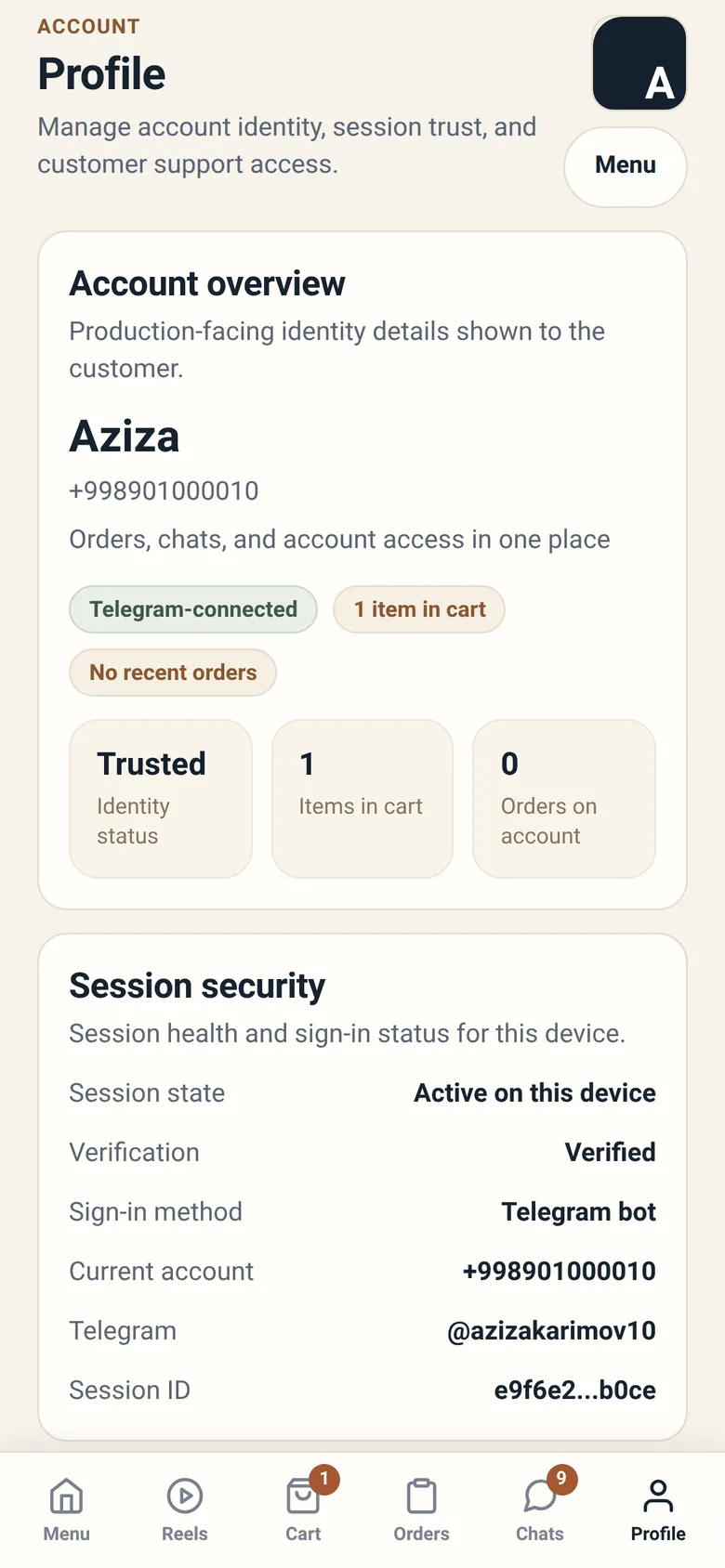
Section titled “Your profile”Your profile is mostly a read-out, not a form. Under Account details it shows you what Sitora holds — your display name, the method you are signed in with right now, and whichever of your phone number, Telegram username and email the account has — as plain lines of text. None of them can be edited from the app. Your name and contact number come from the account you signed in with, and the only way to change them is to change them there.
What the profile does let you set and do:
- Your language — English, Russian or Uzbek. It is the one account setting the app writes.
- Your sign-in methods — see above
- Sign out — on this device
The contact number staff see on an order is separate from all of this: you type it at checkout, every time, on every order type.
In the staff and owner apps the profile also shows who you currently are in the system: which branch you are working in and in which role, or which restaurant you are controlling. When something on screen looks wrong, this is the first thing to check — you may simply be in the wrong branch.
What “access” means
Section titled “What “access” means”The word comes up constantly in Sitora Pro and Sitora Biz, so it is worth pinning down.
Your account by itself does not let you do anything at a restaurant. What lets you act is a role at a branch, given to you by someone at that restaurant — a branch admin, a manager, or the owner. That is your access.
Consequences worth knowing:
- Access can change while you are using the app. If someone changes your role during your shift, the app tells you and stops showing you actions you no longer have. It does not let you keep working from a screen that is no longer true.
- Access is per branch. Being a cashier at one branch does not make you a cashier at another.
- You may hold several roles at one branch. In that case you choose which one you are working as, and can switch during your shift.
- Sitora staff cannot give you access to a restaurant. Only that restaurant can. If you have no access, the person to ask works at the restaurant, not at Sitora.
Language
Section titled “Language”Every app ships in English, Russian and Uzbek, and you set it per person, not per restaurant. Two people using the same tablet can see it in different languages by signing in as themselves.
Changing the language redraws the whole app. Your cart, your place in a queue, and anything you have typed are preserved.
Notifications
Section titled “Notifications”Alerts live inside the apps. Sitora sends nothing to your phone — there are no push notifications, no SMS and no email — so nothing arrives while an app is closed.
Only Sitora Biz has an alert feed today. An owner sees a bell with an unread count on the home screen, a Notifications screen behind it, and toggles in the account screen for which alert types they want. Guests, staff and couriers read what is happening from the screens themselves — an order’s status, a fresh offer — and have no separate feed.
So checking your phone’s notification settings will not help: there is nothing for them to let through. If you are waiting on something, open the app.
Privacy: what other people can see
Section titled “Privacy: what other people can see”- Guests see restaurant information, and the staff name attached to a conversation about their order.
- Staff see the guest details attached to an order they are working on — name, contact number, and the address for a delivery.
- Couriers see a delivery’s payout and distance before accepting, and the customer’s address and contact number only after accepting. Before you take a job, it is not your customer.
- Restaurant feedback about a courier is aggregated. A courier sees how many positive and negative ratings they have and for what reasons — never which restaurant said what.