Ordering at a table
Dine-in is the app’s home ground: you are sitting in the restaurant and you want food without waiting to catch someone’s eye.
Step by step
Section titled “Step by step”- Choose the branch you are sitting in. If you pick the wrong branch, your order goes to the wrong kitchen — so check the name at the top.
- Add what you want to your cart.
- Open the Cart tab and set the order type to Dine in.
- Pick your dining spot — your table, room, cabin or tapchan. The list shows what the branch actually has.
- Check the contact number. Every order needs one, whatever its type. It is filled in for you only if you signed in with Telegram and Telegram had your number — sign in with Google and the field starts empty, and Place order refuses until you type one.
- Add a note if something matters: no onions, allergy, one plate to share.
- Place order.
Scan the code on your table
Section titled “Scan the code on your table”Most tables carry a printed code. Scan it with your phone’s camera and the app opens already at that branch and that table: the header says At #7 · Window, and the cart shows the table as fixed rather than as a list to pick from. Inside Telegram the same code opens the app signed in as you.
Ordering from a scanned table needs no confirmation from staff — your order goes straight to the kitchen. If you scanned the wrong table, tap Not your table? in the cart to pick from the list instead, or tell a member of staff: they can move your visit to the right table.
If the code says This code is no longer valid, the restaurant has replaced it. Ask for a fresh one, or pick your table from the list.
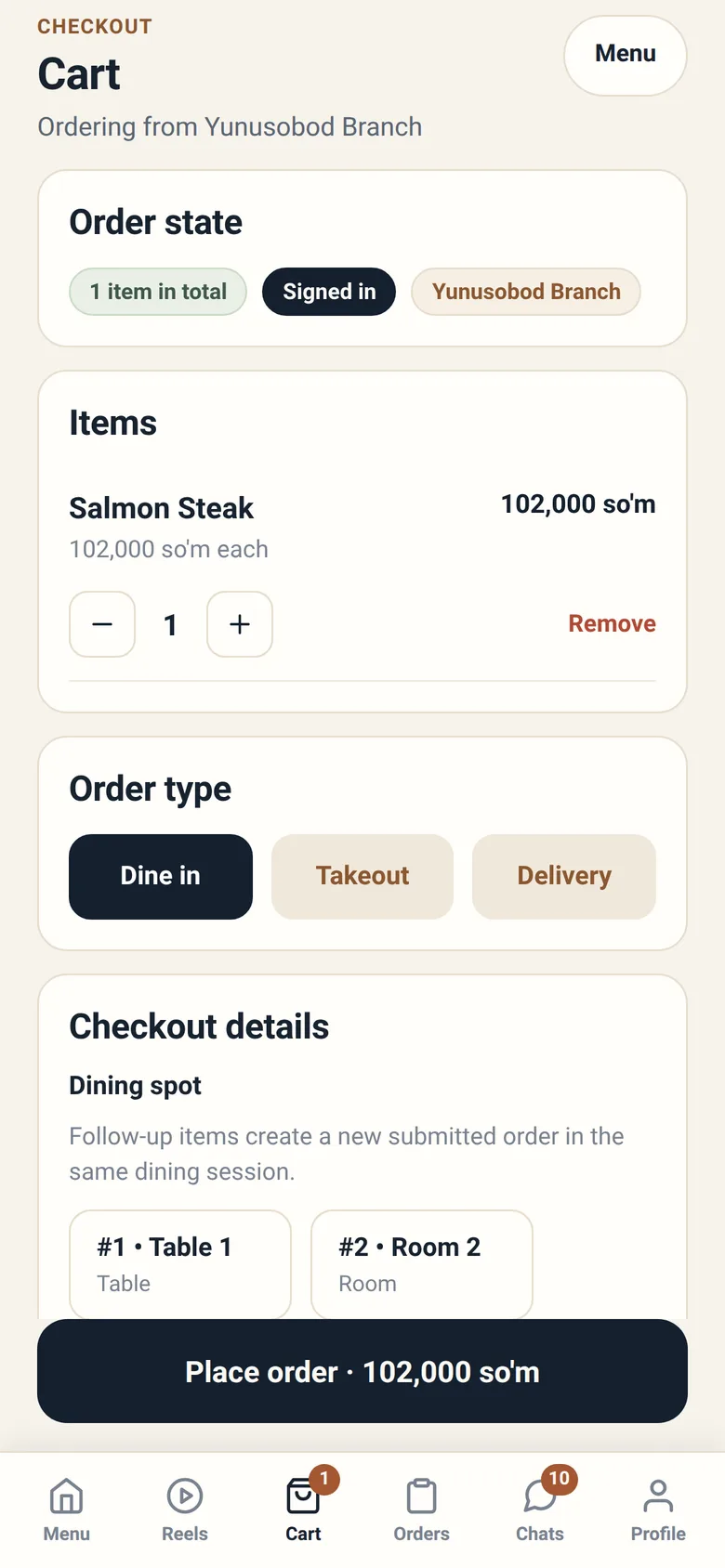
Pick the right spot
Section titled “Pick the right spot”The spot list is how the restaurant finds you. Choosing the wrong one sends your food to another table, so it is worth the two seconds.
Spots are numbered and named — “#4 · Table 4”, “#1 · Cabin 1” — and the numbering matches whatever is physically written on your table.
If the branch has no spots set up, the app tells you so, and you cannot place a dine-in order there. Order takeout instead, or ask a member of staff.
What a “dining session” is
Section titled “What a “dining session” is”Your visit is a dining session, and it holds all the orders you place at that table.
Starters now and a dessert an hour later are two orders on one visit, not two visits. This is why the app says “Follow-up items create a new submitted order in the same dining session.” The session is what gets totalled and closed when you leave.
Placing that second order is the part the app does not do for you — see Adding more during your meal below.
Under Orders, a dine-in entry shows the session and how many orders it contains, with a visit total across all of them.
Why your order says “Waiting for the table to be confirmed”
Section titled “Why your order says “Waiting for the table to be confirmed””When you place a dine-in order, the restaurant confirms that you really are at the table you chose. Until a member of staff does that, the order carries one extra line in your Orders list: “Waiting for the table to be confirmed.”
Its status stays Received while it waits. The wait is not a status of its own, and the line appears only in the list — open the order and you will not see it there.
This exists because a table is a claim about the physical world that an app cannot verify by itself. Confirmation normally takes moments. If it sits there, wave someone down — the staff app is showing them your order and the table you named.
An order placed by scanning the code on the table skips this wait: the code is the proof you are there.
Adding more during your meal
Section titled “Adding more during your meal”Scan the code on your table again and order: the second order joins your visit and its total. That is the one way the app takes a second order at a table you are sitting at.
Picked your table from the list instead? From the moment your first dine-in order exists, that table stops being offered there: it is greyed out, and an order that names it anyway is refused with “This table already has an open tab.” Ask a member of staff, the way you would in any restaurant — or scan the code.
If somebody else already has an open tab at the table you scanned, the app asks whether you are with them. Yes puts your order on their tab, and they see it too; No leaves the cart as it is so you can pick another table.
Paying — now, or on the way out
Section titled “Paying — now, or on the way out”Restaurants run dine-in one of two ways, and the app follows whichever your branch chose. You do not pick.
Pay as you order. Each order is paid before the kitchen starts it. This is the default, and it is what most branches do.
Run a tab. Your orders go on the visit and you settle once, when you leave. Where a branch works this way, food starts without payment and your visit total is the thing that matters rather than any single order.
You can tell which you are in without asking: on a tab, orders start being prepared while still showing as unpaid, and the visit shows an outstanding total. Branches that run tabs also set a ceiling on how much one table may run up. If a new order would cross it, that order is refused and told you so — the food already on the tab is untouched.
Either way, settling happens with the restaurant, in whatever way that branch handles it: at the till, at the table, by card, by cash, by transfer. The app shows you what has been settled and what is still outstanding.
One rule matters: a payment is only real once the restaurant confirms it. Whatever you hand over — cash, a card, a transfer — the order shows as still awaiting payment until a member of staff records it. The app gives you no way to prove a payment yourself: there is no place to attach a receipt or a transfer screenshot, so a payment you have made and the restaurant has not yet entered is a payment the app has not heard about. This is not distrust of you — it is the same rule for every payment route, and it is what keeps the restaurant’s records straight.
Leaving
Section titled “Leaving”You can simply leave. Staff record your departure and close the session once everything is served and settled.
If you leave while something is unresolved — food still coming, payment still open — the session stays in the restaurant’s follow-up queue until they sort it out. You do not have to do anything.
When something goes wrong
Section titled “When something goes wrong”| Situation | What to do |
|---|---|
| I chose the wrong table | Use the chat on the order and tell them straight away |
| My order still says “Waiting for the table to be confirmed” | Get a member of staff’s attention — they can confirm the table |
| I want to cancel | Open the order; Cancel order is there while it is unpaid and not yet started. Paid already? Ask staff |
| The food never came | Chat on the order — it reaches the branch working your table |
| I want to add something | Ask a member of staff — the app will not take a second order for the table you are at |
| A dish I wanted is unavailable | The branch has run out; it returns by itself when restocked |